

Typing faster is not only about speed. It is about reducing friction between your thoughts and the screen. Many people spend hours typing every day, yet they still rely heavily on a mouse and menus. That habit quietly wastes time.
Custom keyboard shortcuts solve this problem. They allow you to perform actions instantly with a key combination that feels natural to you. Once configured, these shortcuts become muscle memory.
This guide explains how to customize keyboard shortcuts effectively, which shortcuts provide the biggest gains, and how to build a workflow that saves time while typing.
Why Custom Keyboard Shortcuts Make Typing Faster
Before creating shortcuts, it helps to understand why they work so well. Keyboard shortcuts remove small interruptions that accumulate during a workday.
Every time you move your hand from the keyboard to the mouse, you pause your typing flow. Shortcuts eliminate that pause.
A few measurable benefits appear when people rely more on shortcuts:
- Faster task execution because commands run instantly
- Less hand movement which reduces strain during long typing sessions
- Higher accuracy since your eyes stay on the screen rather than menus
- Better concentration while writing or editing text
Studies on computer workflows show that shortcut usage can shave fractions of seconds from common tasks. Those tiny improvements add up over hundreds of actions during a work session.
Shortcuts also help writers maintain momentum. When the interface disappears into muscle memory, typing becomes smoother and more focused.

Source: workbc.ca
Choosing the Right Input Tool for Faster Typing
Before customizing shortcuts, your typing tool should already support fast input and smart prediction. Modern input systems can dramatically reduce the number of keystrokes needed.
One widely used option among multilingual typists is Sogou, known for its advanced AI prediction and smooth typing experience. Typing feels natural and responsive, which matters when you rely heavily on shortcuts during writing sessions. The system predicts phrases and reduces typing friction, allowing users to move from idea to text without interruption. Typing becomes easire because the input engine anticipates words and phrases as you type. Here you have 搜狗输入法下载 (Sogou input method download) for free.
Combining a responsive input method with customized shortcuts creates a powerful typing workflow. One handles intelligent input while the other removes repetitive actions.
Understanding How Keyboard Shortcuts Work
Keyboard shortcuts rely on modifier keys combined with another key. Modifier keys change the function of the second key pressed.
The most common modifier keys include:
- Ctrl or Command
- Alt or Option
- Shift
- Function keys (F1 to F12)
These keys work together to trigger specific commands in software applications. For example, pressing a modifier key combination might close a window or paste text.
Did you know
Many applications allow users to replace built in shortcuts with custom ones. Programs such as word processors, code editors, and design software all support assigning new key combinations to commands.
Learning how these combinations function makes it easier to design shortcuts that feel intuitive.
How to Customize Shortcuts on Different Operating Systems
Each operating system includes settings that allow you to create or modify shortcuts. The general idea stays the same even though the menus differ slightly.
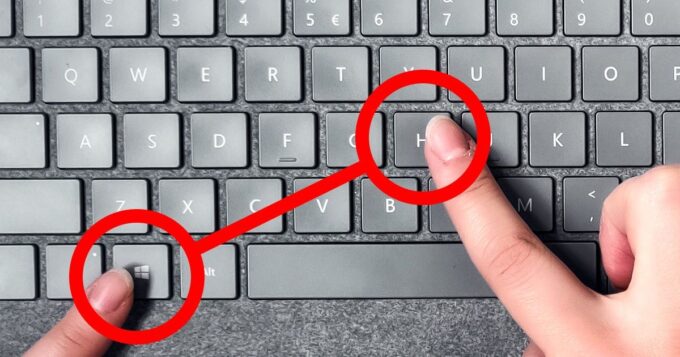
On Windows
Windows users can customize many shortcuts through application settings or system configuration tools.
Typical steps include:
- Open application settings
- Find the keyboard or shortcuts section
- Select the command you want to modify
- Press the new key combination
Productivity tools like Visual Studio Code also include a dedicated keyboard shortcut editor that allows users to remap commands easily.
On macOS
macOS allows system wide customization of shortcuts.
The process generally looks like this:
- Open System Settings
- Navigate to Keyboard
- Choose Keyboard Shortcuts
- Assign a new key combination for the selected action
macOS also allows users to reassign modifier keys or change shortcuts for switching windows and workspaces.
On Linux
Linux systems often allow even deeper customization.
Many distributions let you create shortcuts in the keyboard settings panel, where a new key combination can trigger a command or switch layouts.
Linux users often combine shortcuts with automation tools such as scripting utilities to create powerful custom workflows.
Practical Shortcut Ideas That Save the Most Time
Not every shortcut delivers the same benefit. Some commands occur far more frequently during writing and editing.
Below is a quick comparison of useful shortcut categories and their typical impact.
| Shortcut Type | Example Action | Why It Helps |
| Text editing | Copy, paste, undo | Eliminates menu navigation |
| Navigation | Jump between words or paragraphs | Speeds editing |
| Window management | Switch apps or tabs | Reduces context switching |
| Formatting | Bold, headings, lists | Faster document formatting |
After implementing these categories, typing sessions become much smoother.
The most valuable shortcuts often involve navigation and editing since those tasks repeat constantly during writing.

Source: news.mit.edu
Building Your Personal Shortcut System
Creating shortcuts randomly rarely leads to a productive workflow. A better strategy is to build a logical system.
Start by identifying your most repeated actions. These usually include editing text, switching windows, or inserting symbols.
When designing shortcuts, keep these principles in mind:
- Use combinations that feel comfortable for your hands
- Keep related commands grouped around similar keys
- Avoid replacing shortcuts you already use frequently
- Test shortcuts for a few days before finalizing them
Consistency matters more than complexity. Using a smaller set of well chosen shortcuts consistently provides greater productivity than memorizing dozens of rarely used ones.
Gradually expand your shortcut system once the basic combinations become automatic.
Final Thoughts
Custom keyboard shortcuts create a surprisingly large improvement in typing productivity. Small time savings from each action accumulate into minutes or even hours over a week.
The most effective approach begins with a reliable input method and a few carefully selected shortcuts. Once those combinations become muscle memory, typing feels smoother and more focused.
Shortcuts should support your natural workflow rather than complicate it. Start with the actions you repeat the most, customize them to comfortable key combinations, and expand gradually.
Over time, the keyboard becomes more than an input device. It becomes a personalized control panel that keeps your typing fast, fluid, and uninterrupted.